CloudFlare.com
Go to Cloudflare.com and sign in
At the home page, you will see a list of domain like in the picture below
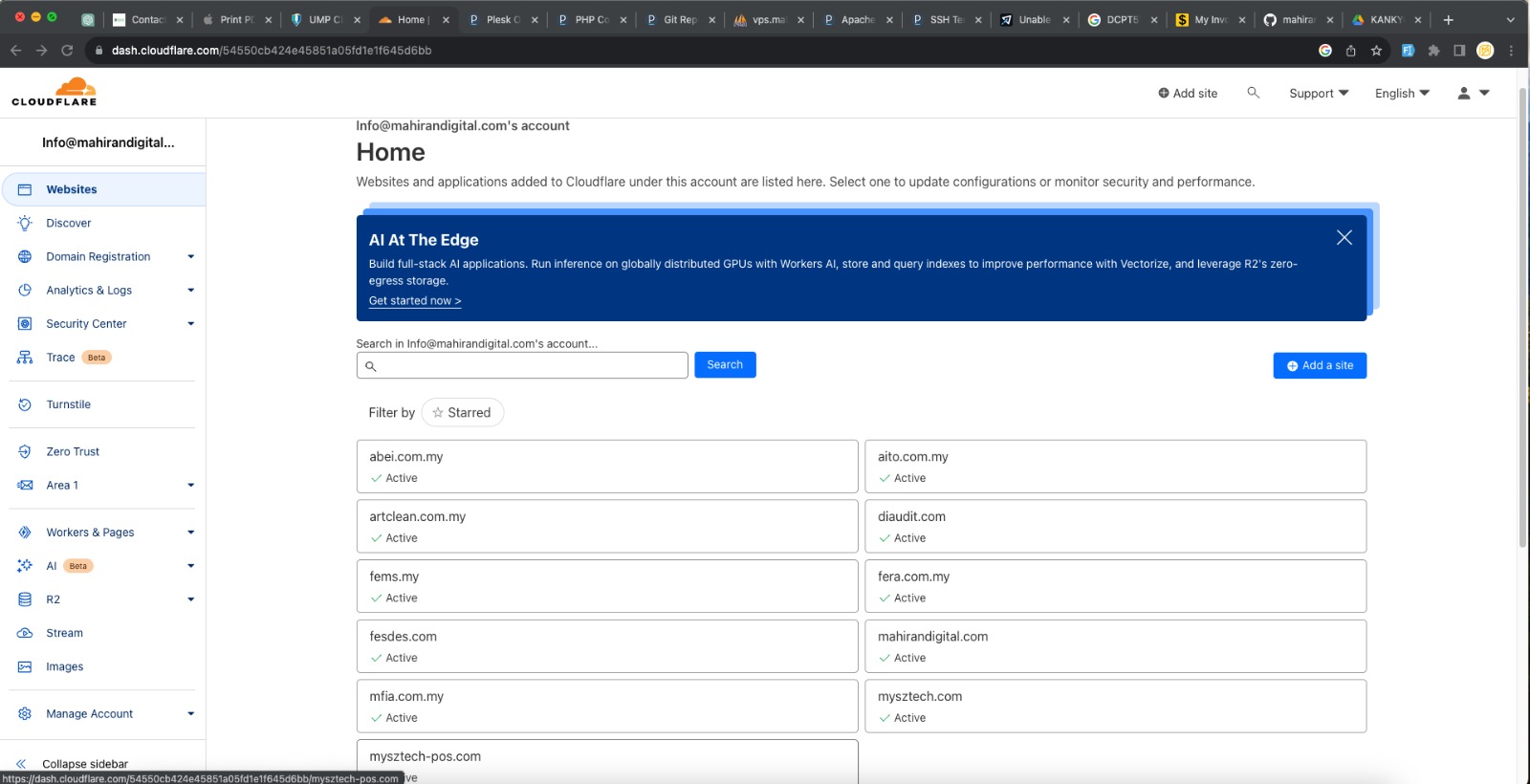
Click mahirandigital.com
At the left panel navigation, Click DNS > Records
Click add record
in the Type section put
Ain the "name" input box, yourproject-name
in the ipv4 address input box, put
45.127.4.166then click "Save"
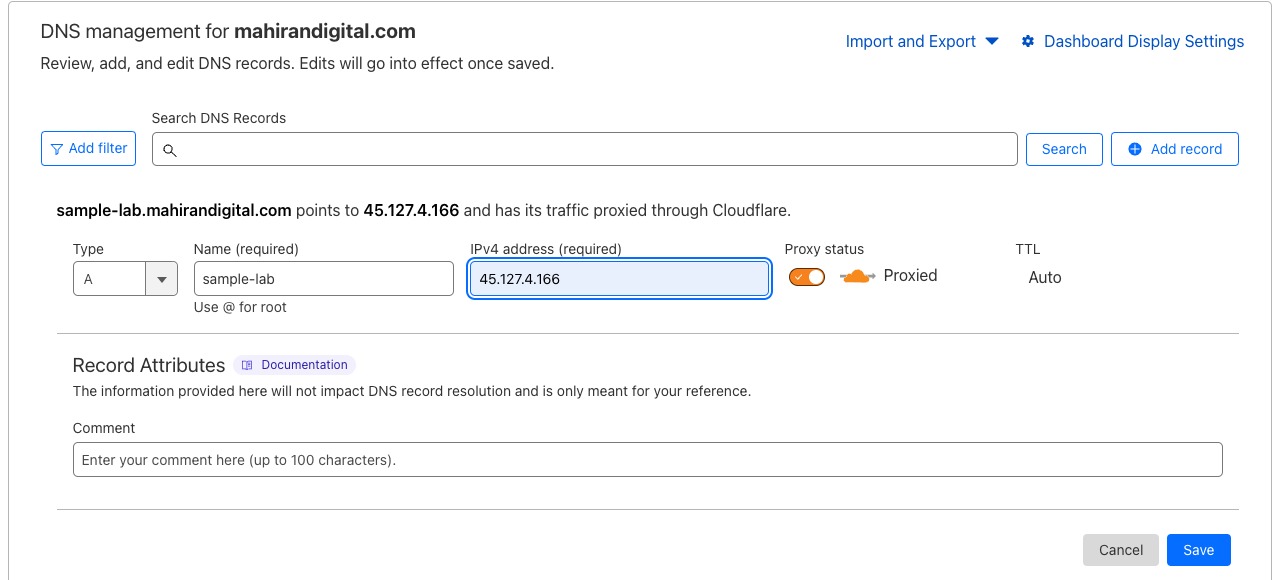
after that, try search yourproject-name.mahirandigital.com
as case like this sample-lab.mahirandigital.com
Go to 'https://vps.mahirandigital.com/' and login
in the 'Websites & Domains' page, click 'Add Subdomain'
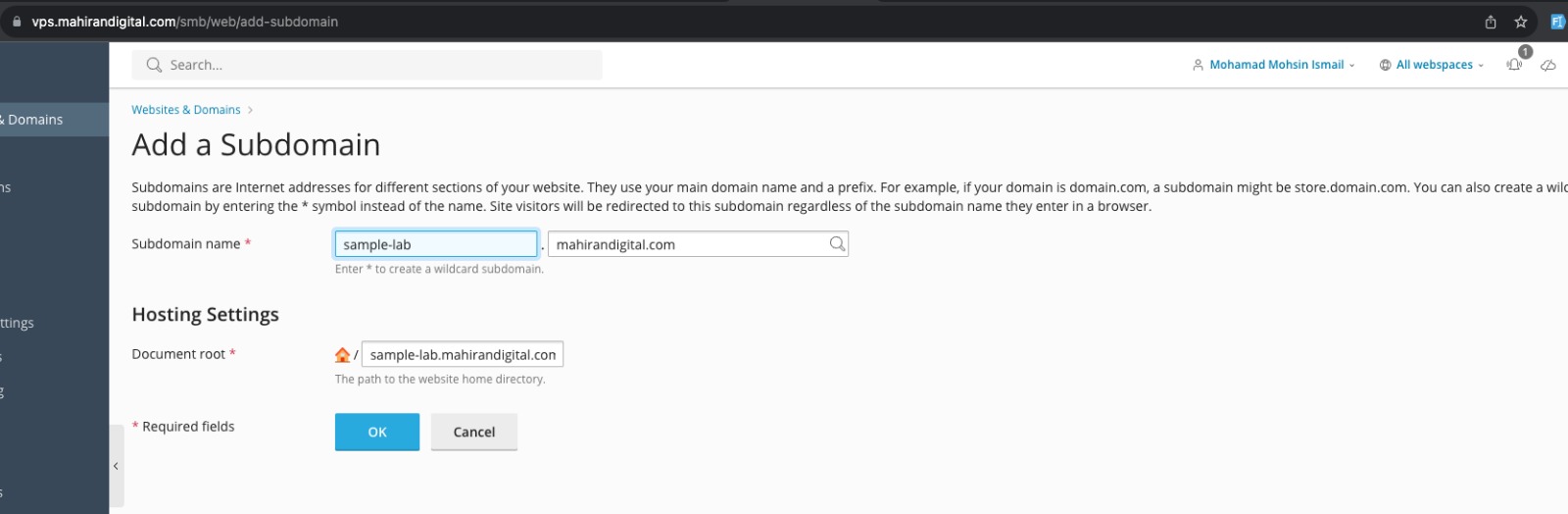
fill up the details as the example in the picture above. Recommended use the same name as register in the cloudflare. then click "OK"
Next,
Create Database
to create database, go to section 'sample-lab.mahirandigital.com'
Dashboard tab > Files & Databases > Databases
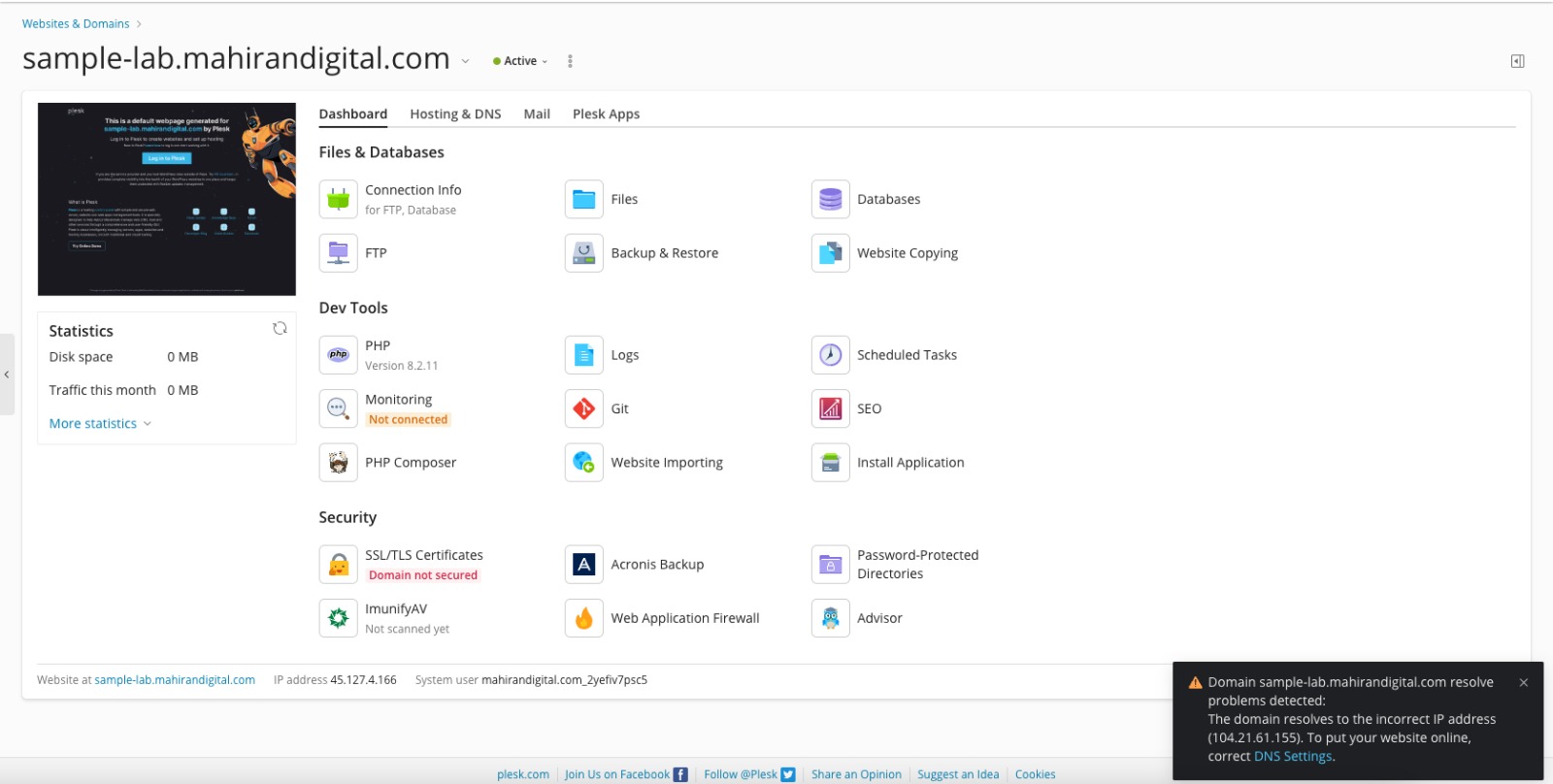
click the databases button.
click 'Add Database' button at the above and you will see this dialogue/page
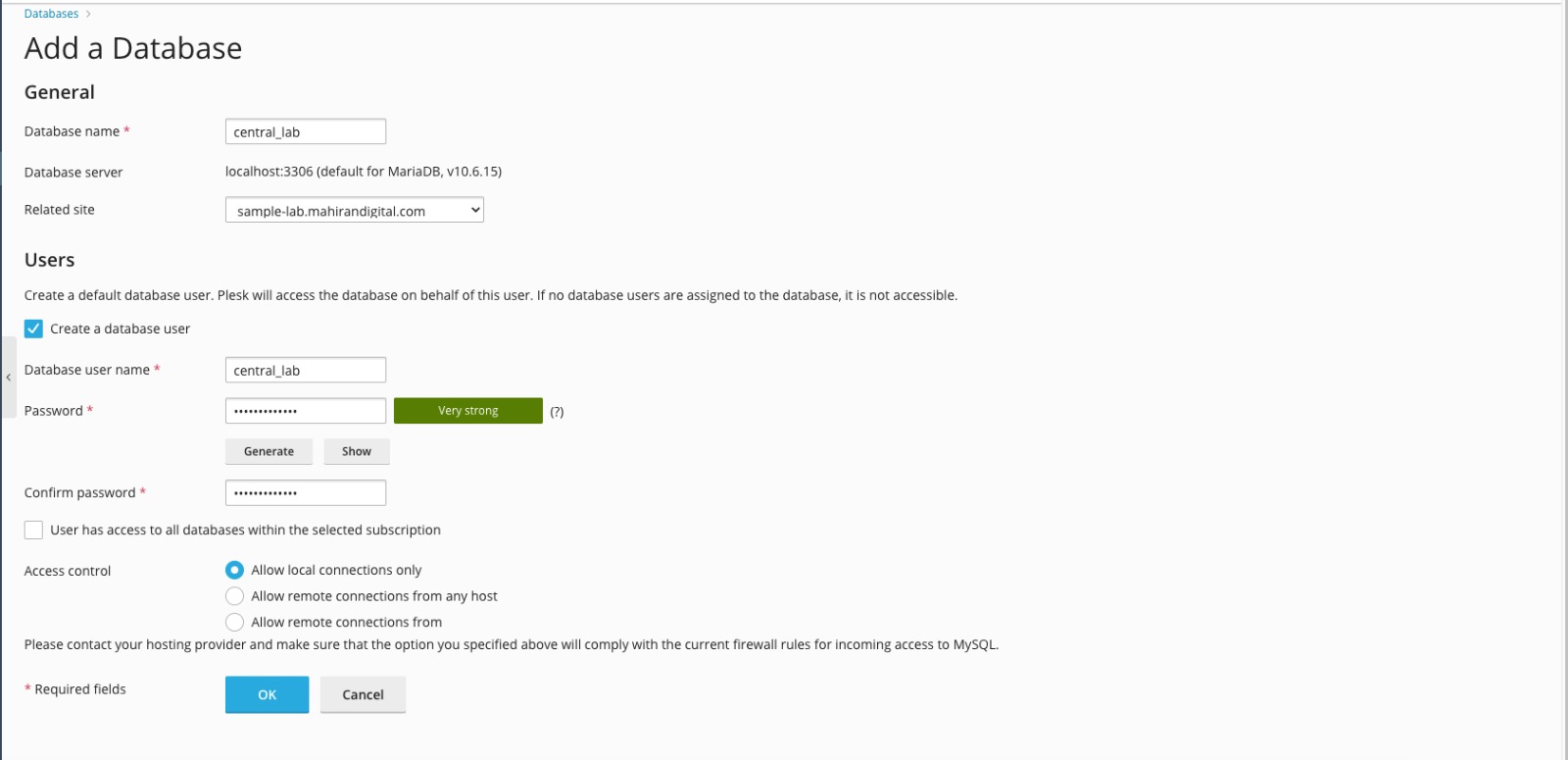
Fill in the 'Database name', 'Related site', 'Database user name', 'Password' and 'Confirm Password' sections.
For the password, it is recommended to generate the password and add more four letters to make the password very strong.
Reminder:
Copy and Paste the password and database user name in somewhere because the password cannot be retrieve again, this password will be used in the env file
After done all that, click OK
Add Project Using Git
under this section, Dahsboard > Dev Tools
click Git
then click Add Repository
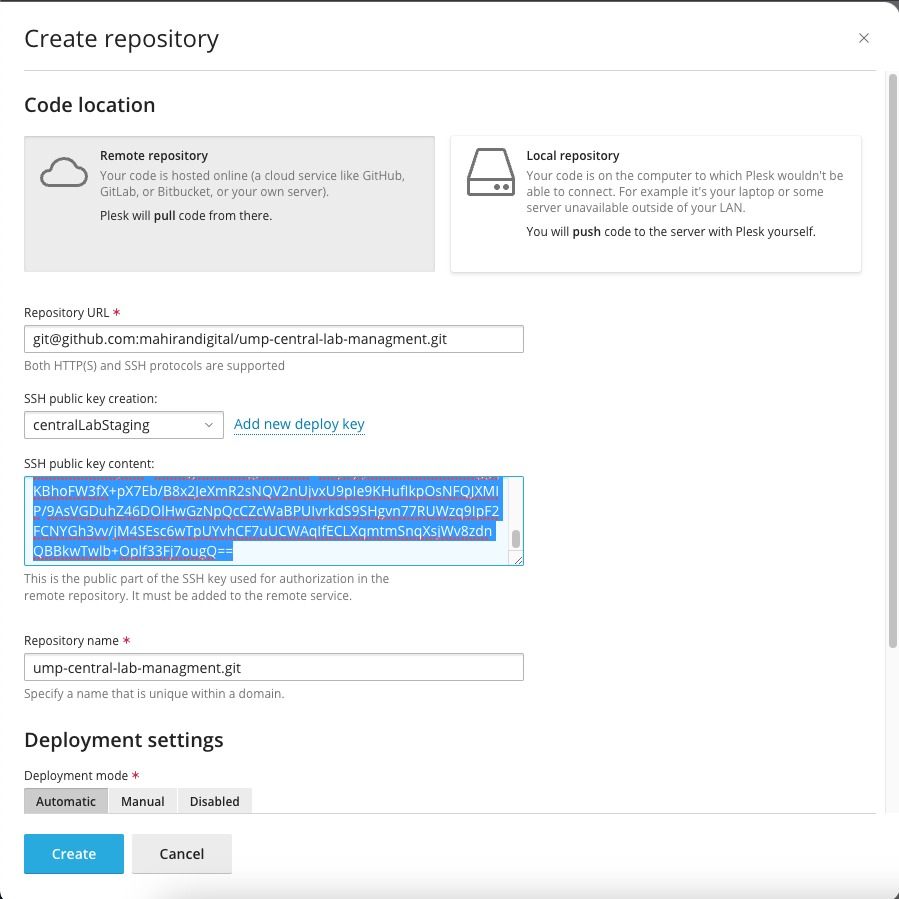
for the repository URL, use SSH Url, this can be get from the github or gitlab or other git website
Click add new deploy key, put your project name
and copy the ssh public key content
Go to your github, open your project repository
go to Settings > Security > Deploy keys
click add Deploy key, put your title and paste your ssh key in the Key input box
Tick 'Allow write access'
then click 'Add Key'
After that, go back to your plesk, click 'Create'
choose your branch, and click 'pull now'
Run Node JS
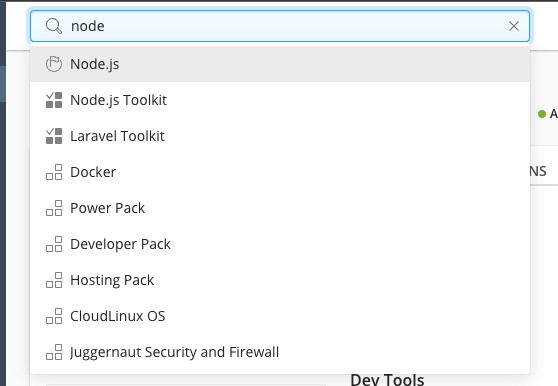
search Node.js in the search panel at the top and click Node.js
Click 'Application Root' and click the project name as example in the picture below
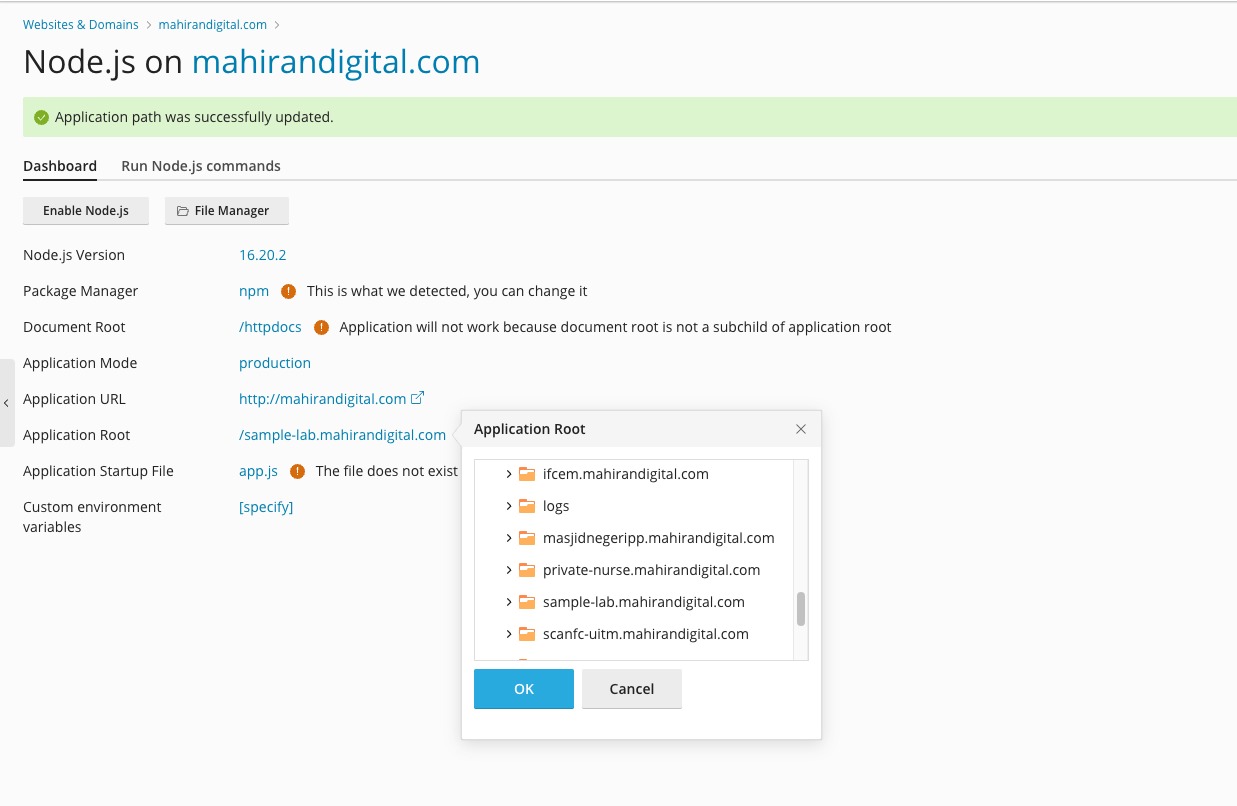
Without enable the Node.js, Navigate to Run Node.js commands tab
in the Run script dialogue, type 'install' then click 'Run',
in the Run script dialogue, type 'build' then click 'Run', then close
Run Composer Update
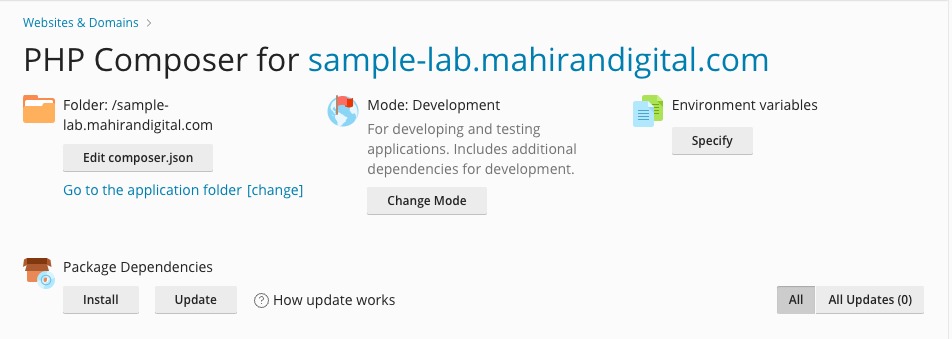
go to this section, under the Dashboard tab > Dev Tools click PHP Composer
after that, you will see this
First, change the Mode from production to Development by click the 'change mode' button
Second, under Package Dependencies, click 'Install', wait a few second, then Click 'Update' button.
After done that, create env file
Create .env File
to create env file, go to this section under Files & Database, click 'Files'
under the same directory with .env.example file, copy the env.example file and paste to the same directory and named it as .env file, then configure the env file
change this in the env file
APP_URL=https://sample-lab.mahirandigital.comDB_DATABASE=central_lab
DB_USERNAME=central_lab
DB_PASSWORD=2B51i$6fjasdfdb username and db password are from the things you copy and paste it to somewhere.
after that, click save.
Hosting, Apache & nginx
go to this section again, navigate to tab 'Hosting & DNS'
click 'Hosting'
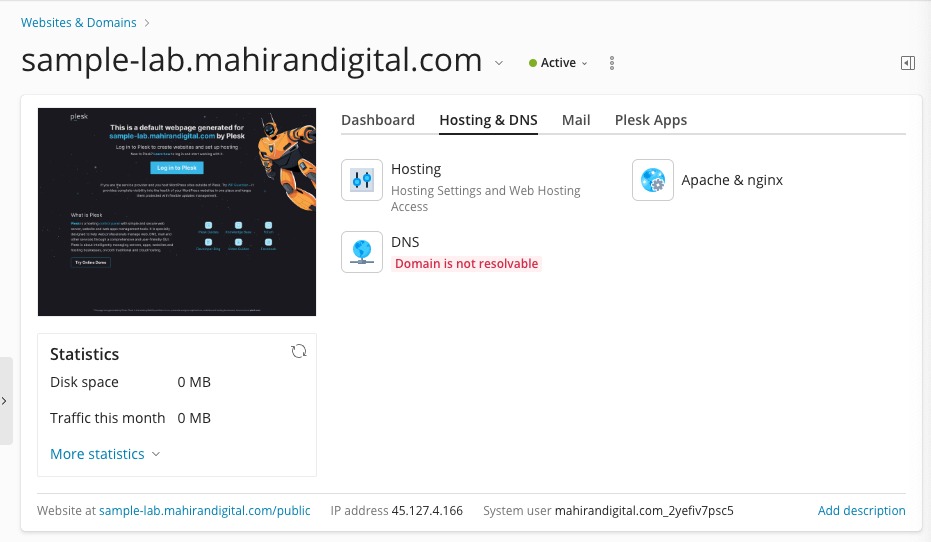
under the domain name, write your project name, in this case, 'sample-lab'
for Document root under Hosting type section, add /public. For example
sample-lab.mahirandigital.com/publicuse this picture as a reference
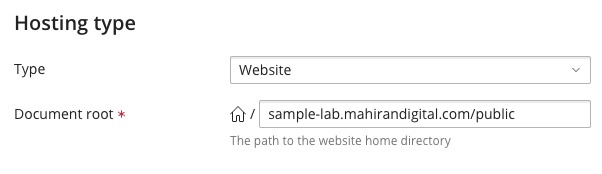
after that, click Save.
Apache & nginx
back to hosting & dns, click 'Apache & nginx
untick/uncheck the the
'Restrict the ability to follow symbolic links'
check box, scroll down, then click OK
SSH Terminal
to open this terminal, search 'SSH Terminal' at the search panel above
write this command to go to your project directory.
cd /var/www/vhosts/mahirandigital.com/sample-lab.mahirandigital.com/Reminder: please double confirm your project directory or it will affect other project
after that your terminal will look like this
[root@vps sample-lab.mahirandigital.com]#after that, you are free to run your command
Basic command to deploy:
php artisan key:generate
php artisan filament:upgrade
php artisan migrate:fresh --seed
php artisan storage:link
Optimization command:
php artisan icons:cache
php artisan filament:cache-components
php artisan optimize
php artisan event:cache
composer dump-autoload -o